Your maintenance clients pay for peace of mind - make every report prove it.
Update Brief automatically adds concise WordPress and plugin update summaries to your MainWP Pro Reports, so clients finally see the fixes, security hardening, and improvements you've handled behind the scenes.
And for your own peace of mind: a Summary button on your MainWP Updates screens shows exactly what an update changes before you apply it.
Full API access from day one. Cancel online any time.
How it works
1. Run Updates
Update plugins and WordPress core across your client sites with MainWP as usual.
2. Generate Client Reports
Create your client reports in MainWP Pro Reports using an Update Brief template.
3. Summaries Added
Update Brief adds concise summaries for each WordPress & plugin update automatically.
Like to check the changes before you run updates? Click Summary on the MainWP Updates screen anytime for an instant summary - no report required.
Introduction
MainWP is a free, self-hosted WordPress plugin that lets agencies, developers, and freelancers manage multiple WordPress sites from a single dashboard. Its ecosystem of free and paid extensions expands that dashboard to solve specific management challenges.
Update Brief for MainWP automatically adds plain-language WordPress core and plugin update summaries to your MainWP Pro Reports client reports. Each summary covers key new features, critical security patches, and significant bug fixes - giving clients a clear picture of what every update achieved and why it mattered.
The same summaries are available on demand too: a Summary button on your MainWP Dashboard Updates screen lets you check exactly what a pending update changes before you apply it - no report required.
For agencies, developers, and managed hosts, these update summaries in your client reports make it easy to demonstrate the ongoing value of your WordPress maintenance services, build client trust, and grow your care plans business.
Update Brief summaries cover both WordPress core and the plugins listed on WordPress.org. Over 30,000 plugins, updated in the last two years, already have summaries. Update Brief also covers a growing list of premium plugins including Gravity Forms, Elementor Pro, WP Rocket, MemberPress, WooCommerce Bookings and WooCommerce Subscriptions.
This plugin is the quickest way to use Update Brief with MainWP. If you would rather build your own integration, the same summaries are available through the Update Brief API.
▶ Watch: Getting started overview (~1 min)
Requirements
You will need the following to add the Update Brief summaries. If you are using MainWP, then you are likely to already have most of this in place.
On your MainWP dashboard site
MainWP Dashboard plugin (free) - Download from WordPress.org
MainWP Pro Reports extension (requires MainWP Pro subscription) - MainWP Pro Reports
Update Brief for MainWP plugin (free) - Download from WordPress.org
Update Brief subscription - free trial available, then from $19/month. Start Your 14-Day Free Trial
On each client (child) site
MainWP Child plugin (free) - Download from WordPress.org
MainWP Child Reports plugin (free) - Download from WordPress.org
Note: The MainWP Pro Reports and MainWP Child Reports are required if you want summaries in your client reports. The MainWP Dashboard -> Updates screen summaries will work without these plugins.
Installation
Install the Update Brief for MainWP plugin on your dashboard site only - not on child sites.
- 1.In your WordPress MainWP dashboard, go to WP Admin → Plugins.
- 2.Click Add Plugin.
- 3.Search for Update Brief for MainWP.
- 4.Click Install Now, then Activate.
5 Minute Setup
Initial setup takes about 5 minutes. You will create two credentials - a REST API key from MainWP and an API token from Update Brief - and paste them into the Update Brief settings page.
Step 1 - Create a MainWP REST API (version 2) key
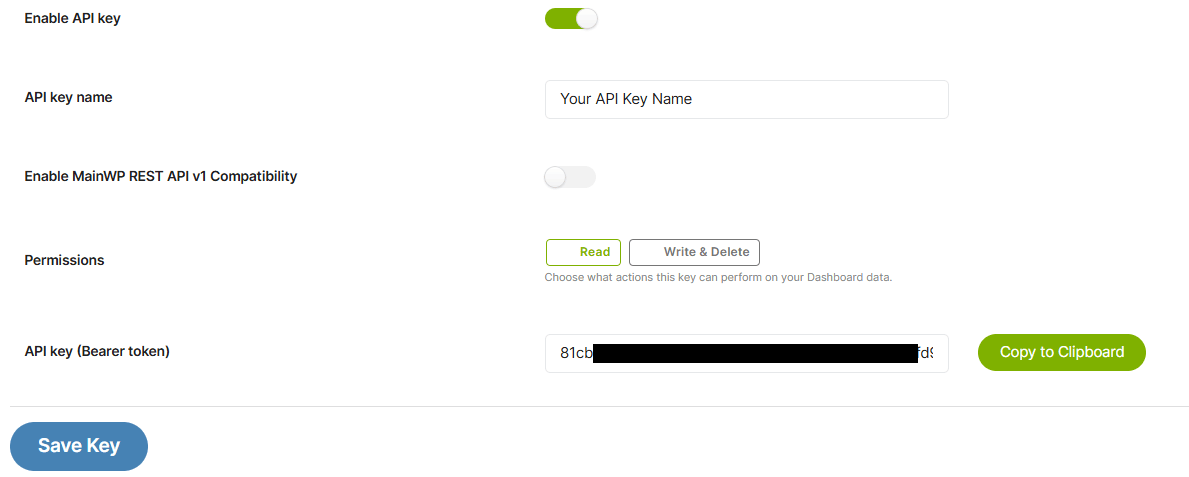
MainWP Dashboard → API → Add API Keys
- 1.On your MainWP dashboard site, go to WP Admin → Settings → Permalinks and confirm the structure is set to anything except Plain (This is a WordPress REST API requirement).
- 2.Navigate to MainWP Dashboard → API and click Add API Keys.
- 3.Enter a descriptive name, e.g. Client Reporting.
- 4.Set Permissions to Read (no write access is needed).
- 5.Copy the generated key and save it somewhere securely - it will not be shown again.
- 6.Click Save Key.
Step 2 - Create an Update Brief API token
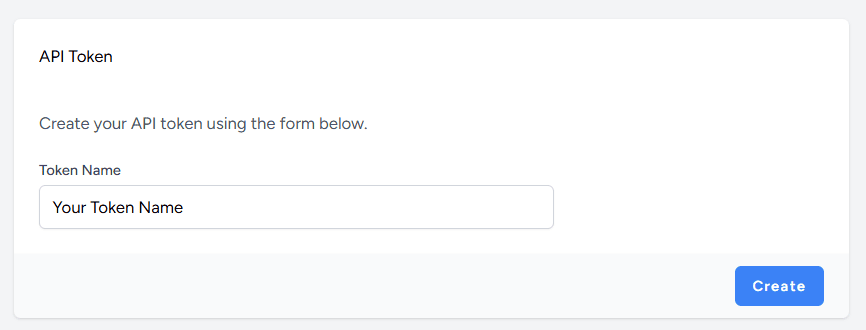
UpdateBrief.com → API Tokens → Create
- 1.Log in to your UpdateBrief.com account.
- 2.Click API Tokens in the main menu. (This option is visible only when you have an active trial or subscription.)
- 3.Enter a name for the token and click Create.
- 4.Copy the key and save it securely - it will not be shown again.
Step 3 - Enter both credentials in MainWP
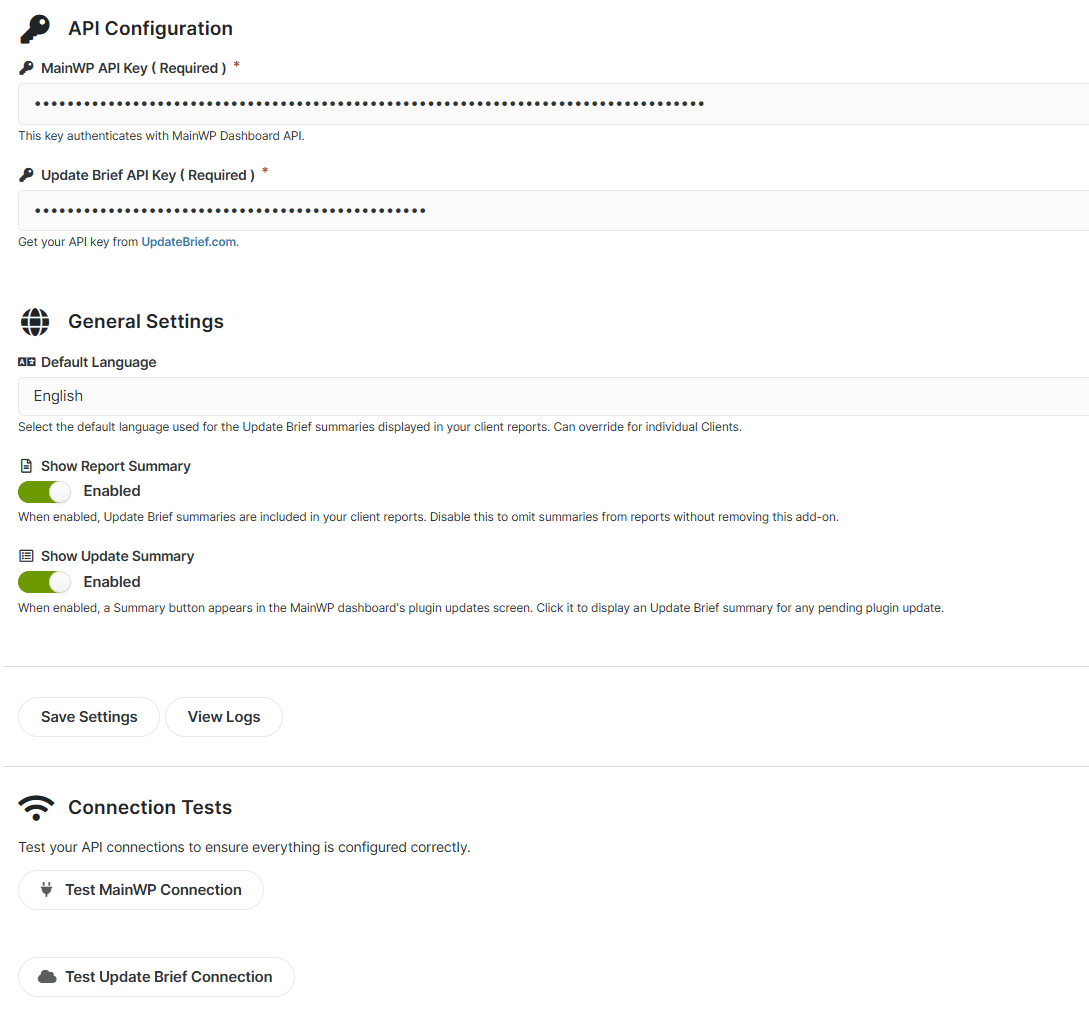
MainWP Dashboard → Add-ons → Update Brief for MainWP → Settings
- 1.Return to your MainWP dashboard site and go to MainWP Dashboard → Add-ons then click the Update Brief for MainWP card.
- 2.On the Update Brief Settings page, paste the MainWP REST API key into the first field.
- 3.Paste the Update Brief API key into the second field.
- 4.Select your preferred default language for the update summaries.
- 5.Toggle the Show Report Summary and Show Update Summary buttons as required.
- 6.Click Save Settings.
- 7.Click Test MainWP Connection and Test UpdateBrief Connection to confirm both keys are working. If either test fails, see the Troubleshooting section below.
Reports & Templates
Once initial setup is complete, Update Brief summaries are added automatically whenever you generate a MainWP Pro Reports client report using one of the Update Brief templates. You will see a concise summary beneath each WordPress core or plugin update entry, describing what changed in plain language.
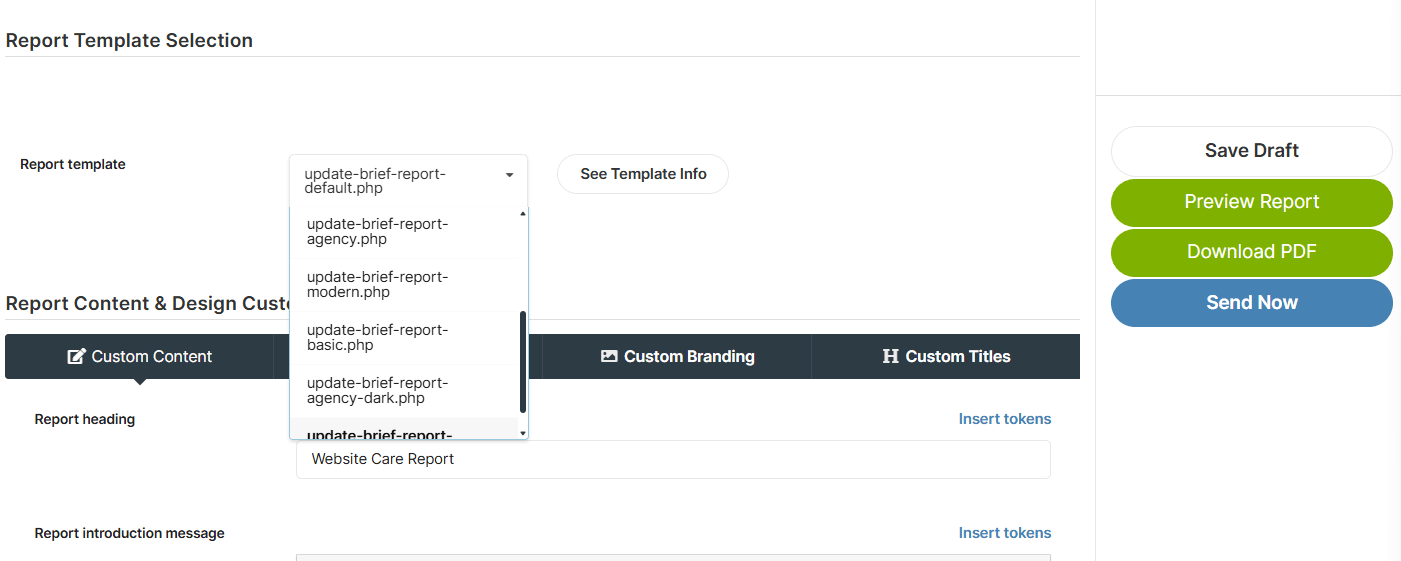
Select an Update Brief template in Add-ons → Pro Reports → Report Settings
- 1.On your MainWP dashboard site, go to Add-ons → Pro Reports.
- 2.Open an existing report or create a new one.
- 3.In Report Settings, select an Update Brief template, e.g.
update-brief-report-modern.php. - 4.Click the preview button to generate a sample report.
- 5.After saving the report your client reports will have update summaries added automatically whenever they are run.
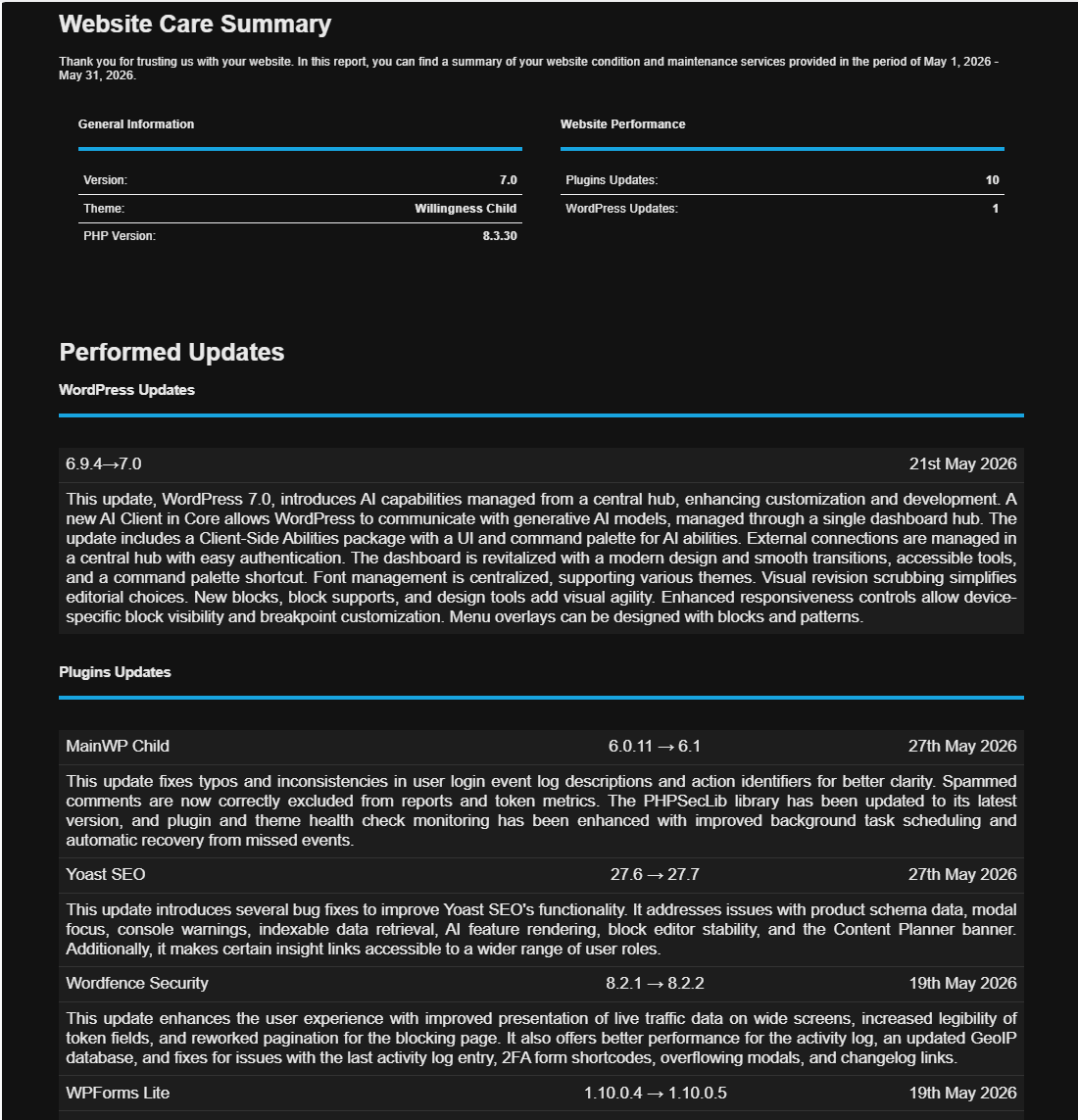
Each update entry shows a plain-language summary of what changed
Using your existing report template
If you have an existing customised MainWP Pro Reports template, you can add the Update Brief summaries with these steps.
- 1.Via FTP, open
/wp-content/uploads/mainwp/report-templates/. - 2.Download the appropriate Update Brief template (e.g.
update-brief-report-modern.php) and make a copy. - 3.Rename the copy, e.g.
update-brief-report-modern-acme.php. - 4.On line 15, update the
$upd_brief_template_filenamevariable to match the filename of your existing template in the same directory. - 5.Save and re-upload the file to the same directory.
- 6.Select your new template when generating a report.
Setting a per-client language
By default, summaries use the language set in your Update Brief settings. You can override this per client - useful if you serve international clients.
- 1.On your MainWP dashboard go to MainWP Dashboard → Clients.
- 2.Click the three-dot menu on the client row and select Edit.
- 3.Scroll to the Update Brief summary language client override field and enter the language code (
enfor English,esfor Spanish,frfor French,defor German,itfor Italian ornlfor Dutch). - 4.Click Update Client. Reports for this client will now show update summaries in your chosen language.
Updates Screen
See summaries before you update
Like to check the changes before you run updates? You can see an Update Brief summary directly within your MainWP dashboard before making updates on any of your client sites.
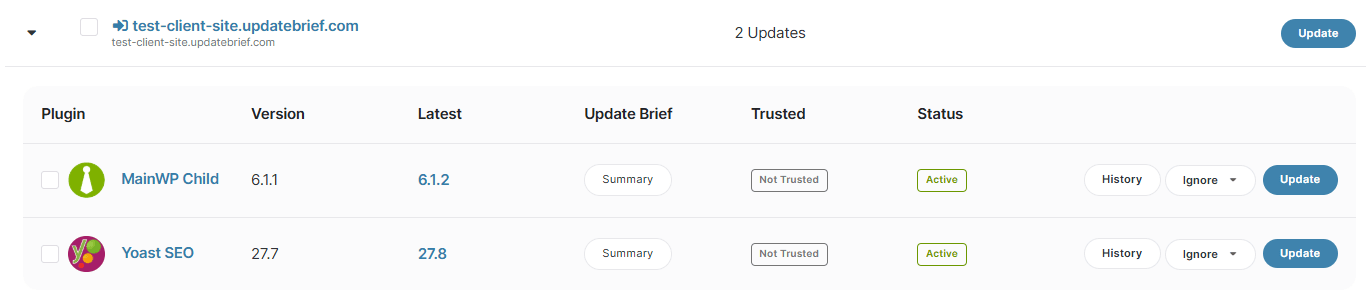
MainWP Dashboard → Updates → Plugins with a Summary button added for each pending update
Using the Summary button
- 1.On your MainWP dashboard go to MainWP Dashboard → Updates → Plugins..
- 2.Any plugin with an available update will display a Summary button.
- 3.On your MainWP dashboard go to MainWP Dashboard → Updates → WordPress Updates.
- 4.Any site with an available WordPress core update will also display a Summary button.
- 5.Clicking the Summary button will show the Update Brief summary for that particular update.
- 6.Give yourself peace of mind by seeing exactly what any plugin, or WordPress core, update includes, before you commit to update any of your client sites.
Note: The screen summaries in your MainWP dashboard are on by default. You can enable/disable them on the MainWP Dashboard → Add-ons → Update Brief for MainWP → Settings page. The screen summaries will work without having MainWP Pro Reports installed.
Troubleshooting
Connection issues
If either API connection test fails during your initial setup, click View Logs on the Update Brief Settings page for detailed error information. Common causes:
| Cause | What to check |
|---|---|
| Permalinks | Confirm your MainWP dashboard permalink structure is not set to Plain — check at WP Admin → Settings → Permalinks. |
| API key permissions | Ensure the MainWP REST API key is a version 2 key and has Read permission. |
| Firewall or security plugin | Some security plugins or server firewalls block REST API requests. Ensure the WordPress REST API endpoint is accessible on your MainWP dashboard site. |
| Subscription status | The Update Brief API requires an active trial or subscription. Check your subscription status at UpdateBrief.com. |
Summaries not appearing in reports
If you do not see the expected Update Brief summaries in your client reports, please check the following:
| Cause | What to check |
|---|---|
| Settings | Check Show Report Summary on the Update Brief Settings page is enabled. |
| API errors | Click View Logs on the Update Brief Settings page to check for API errors. |
| Client sync | Check that the client sites included in the report have been recently synced with your MainWP dashboard. |
| Report period | Confirm there were actual plugin or core updates on the client sites during the report period. |
| Very recent updates | Summaries for brand-new versions are usually available within the hour. |
| Subscription status | Check your Update Brief subscription is active at UpdateBrief.com. |
Summaries not appearing in Updates screen
If you do not see the expected Update Brief summaries in your Updates screen, please check the following:
| Cause | What to check |
|---|---|
| Settings | Check Show Update Summary on the Update Brief Settings page is enabled. |
| API errors | Click View Logs on the Update Brief Settings page to check for API errors. |
| Very recent updates | Summaries for brand-new versions are usually available within the hour. |
| Subscription status | Check your Update Brief subscription is active at UpdateBrief.com. |
Need further help? Contact us and we'll be happy to help.
Frequently Asked Questions
Ready to get started?
Start your free 14-day trial and add WordPress and plugin update summaries to your next MainWP client report.
Start Your 14-Day Free TrialFull API access from day one. Cancel online any time.
